
Manage projects and permissions
Use Projects to create a project or invite teammates. To send an invitation, select an enabled email channel, enter the recipient’s email address, and click Invite by email. Check Pending invitations for its status. Project membership gives users access according to their role permissions. Use dedicated mount roots, buckets, or prefixes to separate storage across projects. Assign realm roles in Keycloak. In Koonj, use Administration → Permissions to change the Operator and Viewer defaults across projects. Koonj combines grants from all roles assigned to an account. Administrator permissions are fixed.Storage connections
Open Management → Storage connections → Add connection. Enter the name, provider, storage path or bucket, and role. A Source can supply files, a Target can receive them, and Both permits either use when supported by the provider and transfer direction. Use Test Connection and Save connection.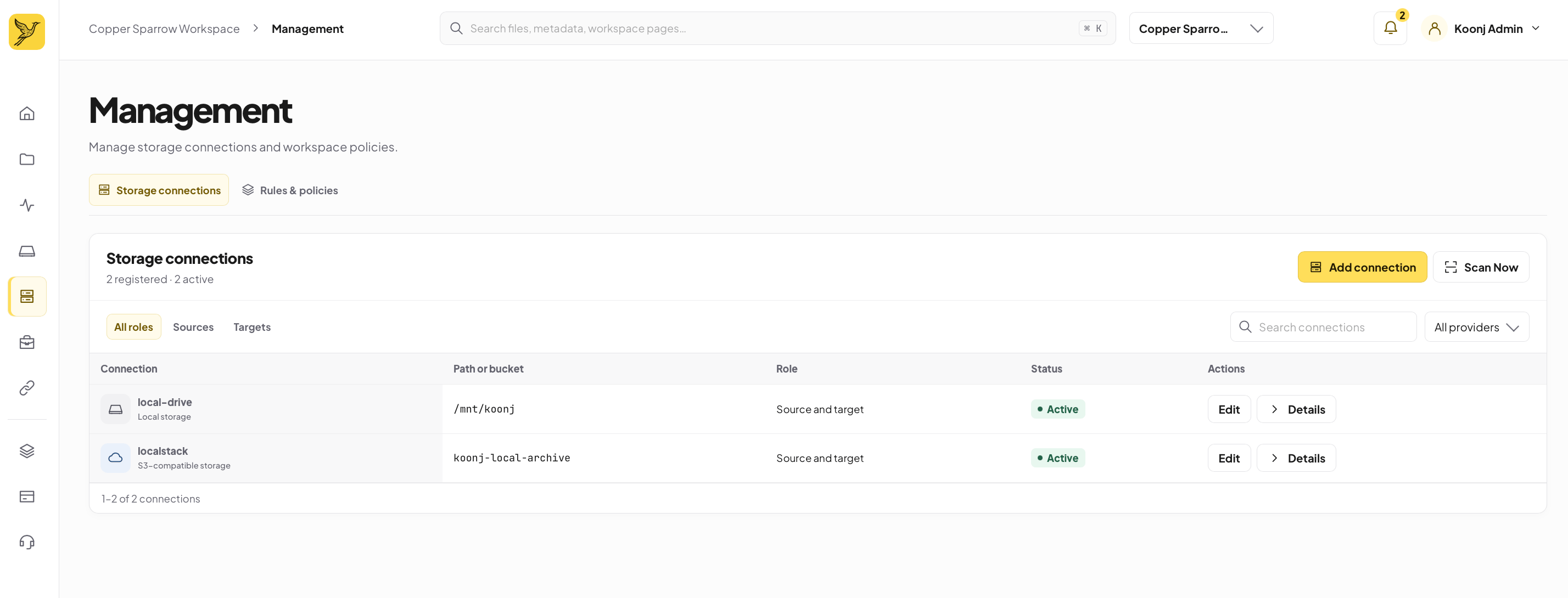
Management shows each storage connection, its role, and whether it is active.
Configure notifications and alerts
Open Integration → Notifications & Alerts. Create and test an SMTP, webhook, Slack, or Teams channel. Attach channels to enabled rules and check delivery history for outcomes and retries. These settings apply across the installation.- Use batch and failure rules to alert on transfer completion or failures at configured thresholds.
- Use quota and license rules with the limits and dates configured on the server.
- Job email goes to the initiating user’s verified sign-in address recorded when the job starts. Delivery also checks current email preferences.
- Generic webhooks receive JSON. If you configure a signing secret, verify
X-Koonj-Signatureby comparing the value aftersha256=to the hex HMAC-SHA256 of the exact request body. Use the stabledeliveryIdto identify retries.